
Account
Your page as members see it, and the settings of your account.
Your page
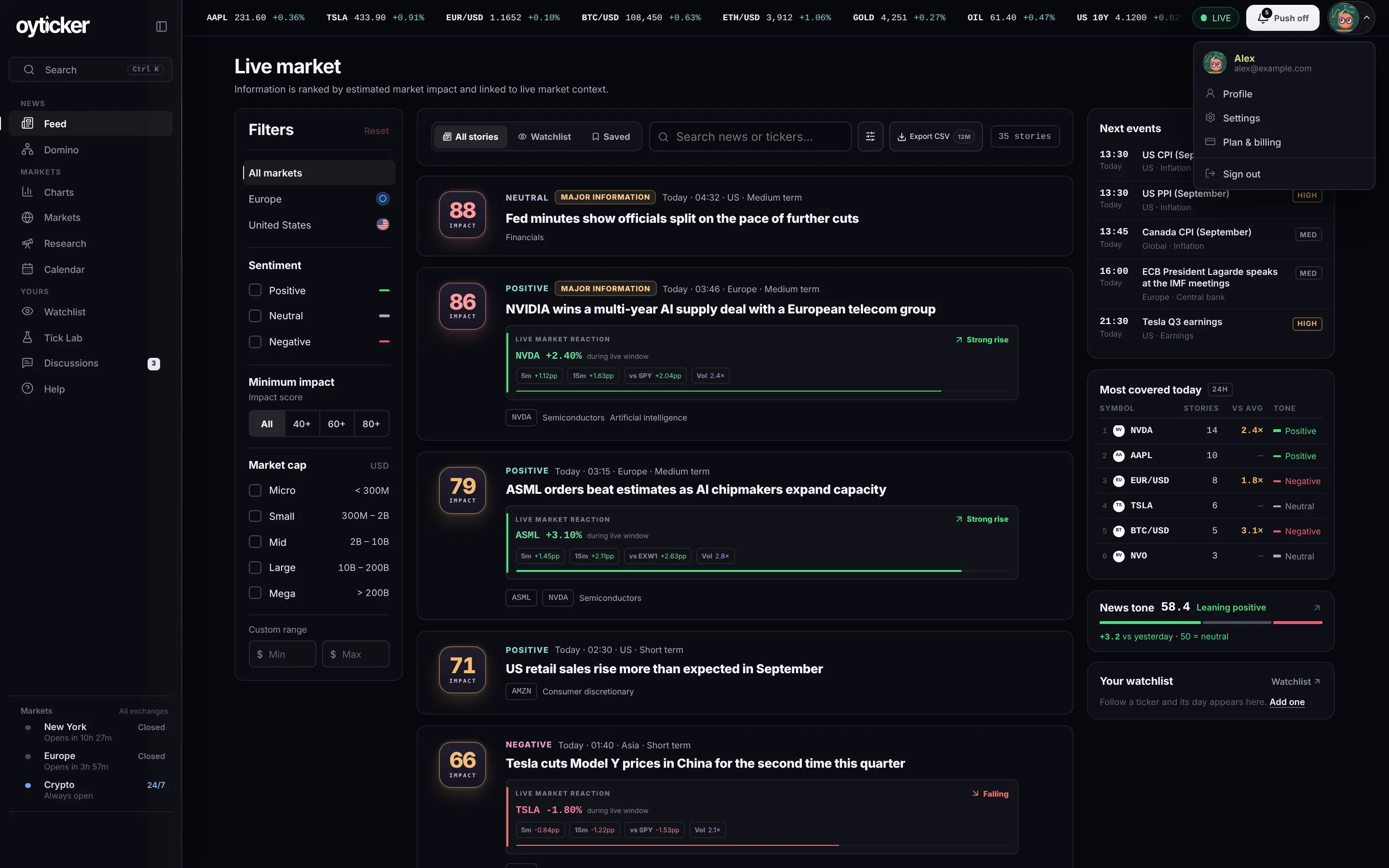
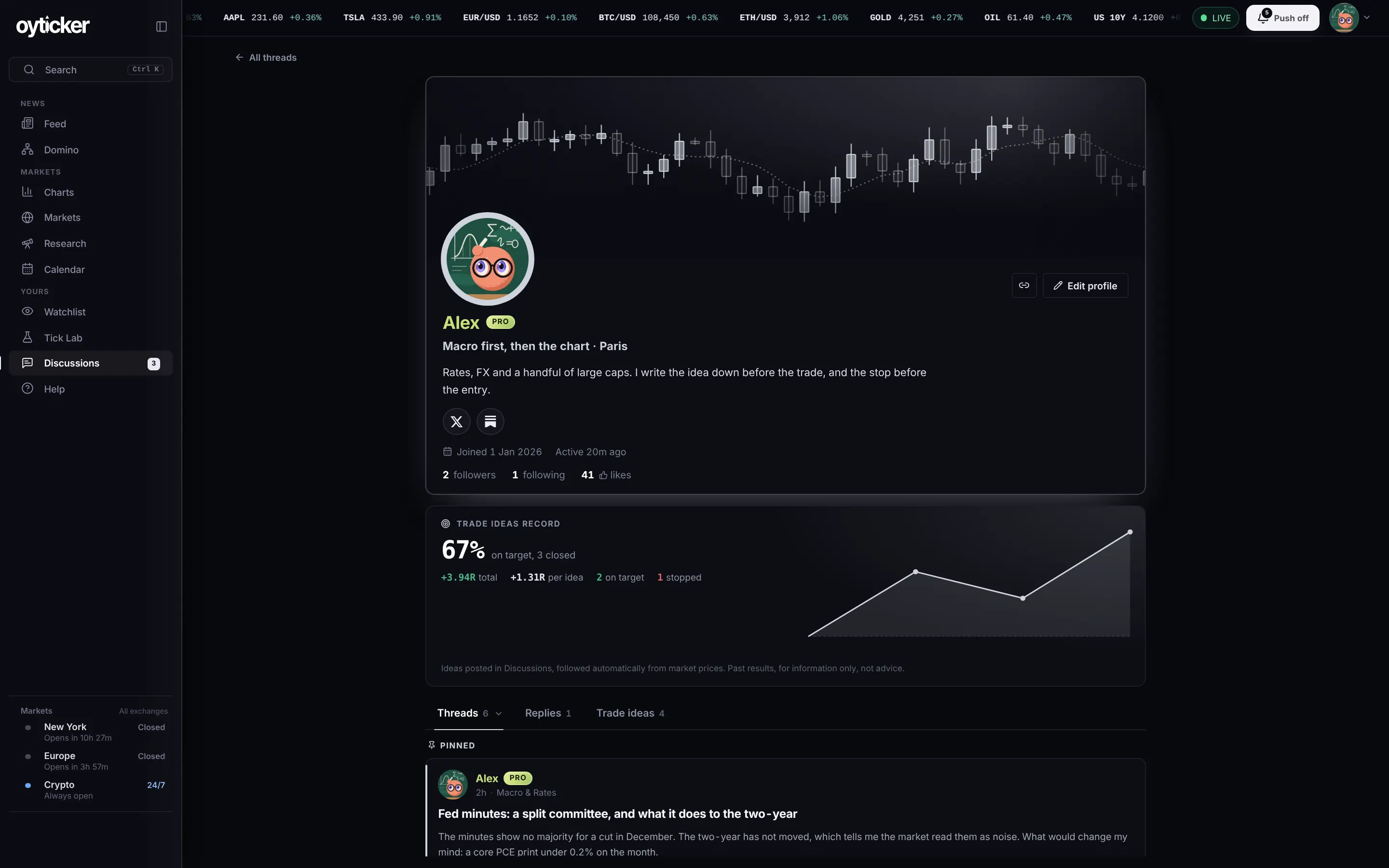
In the account menu, from any page. Your page is part of Discussions.
Banner, picture, name, headline, bio and links. Your e-mail is never shown.
When you joined and were last active, your followers, the members you follow and the likes you received.
Hit rate and total R of your closed ideas, with their curve. Shown only if you feature it.
Pinned threads come first. The arrow beside Threads orders the rest by Recent or Popular.
The link button copies the address of the page. Edit profile is on your own page only.
Edit your profile
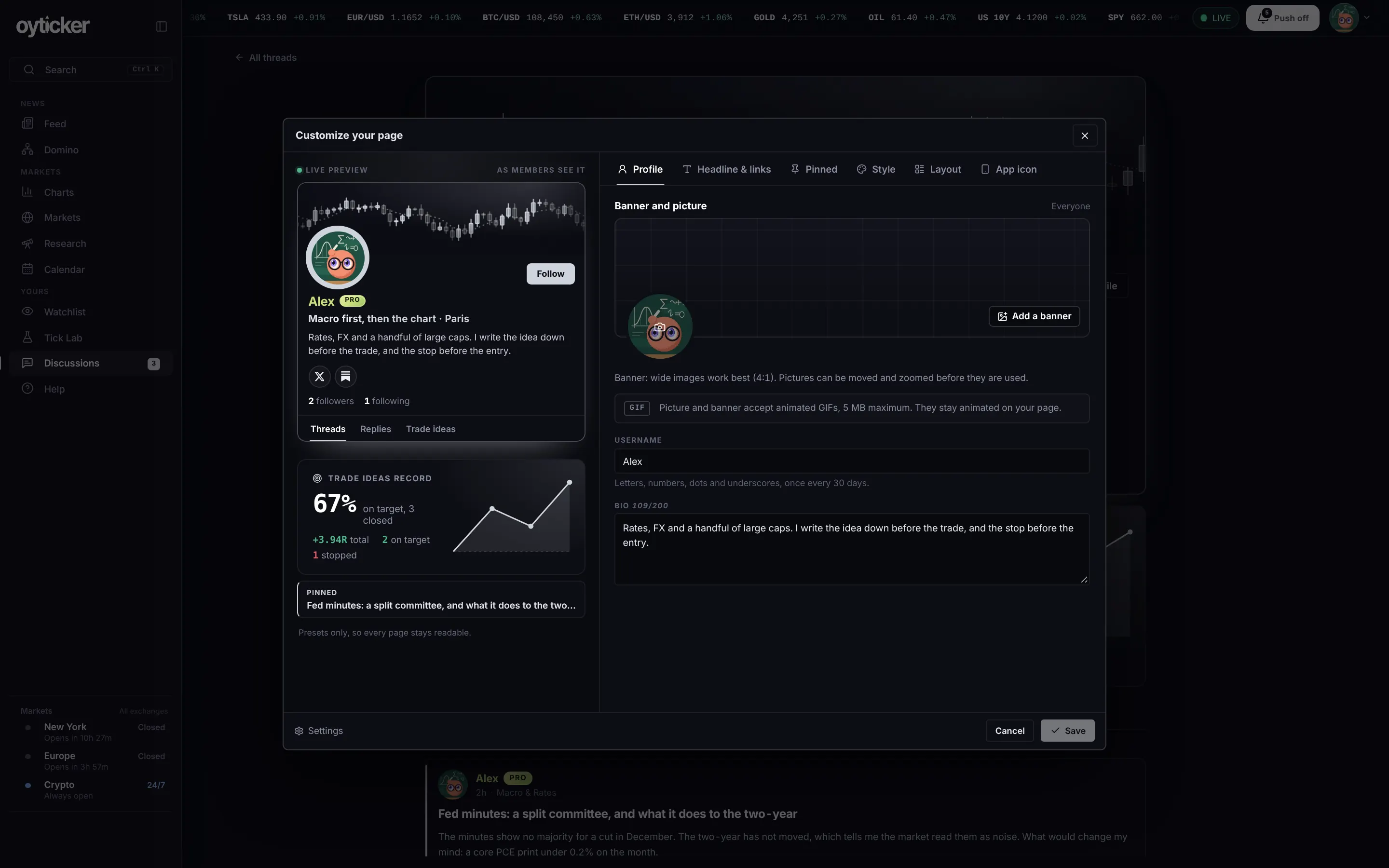
At the right of your picture.
The controls on the right, the page as members see it on the left. Nothing changes until Save.
Change banner takes a wide image, best at 4:1. An image is moved and zoomed before it is used.
3 to 18 letters, numbers, dots and underscores. It can be changed once every 30 days.
What you follow and how you trade, in 200 characters at most.
Applies every change at once. Cancel leaves the page as it was.
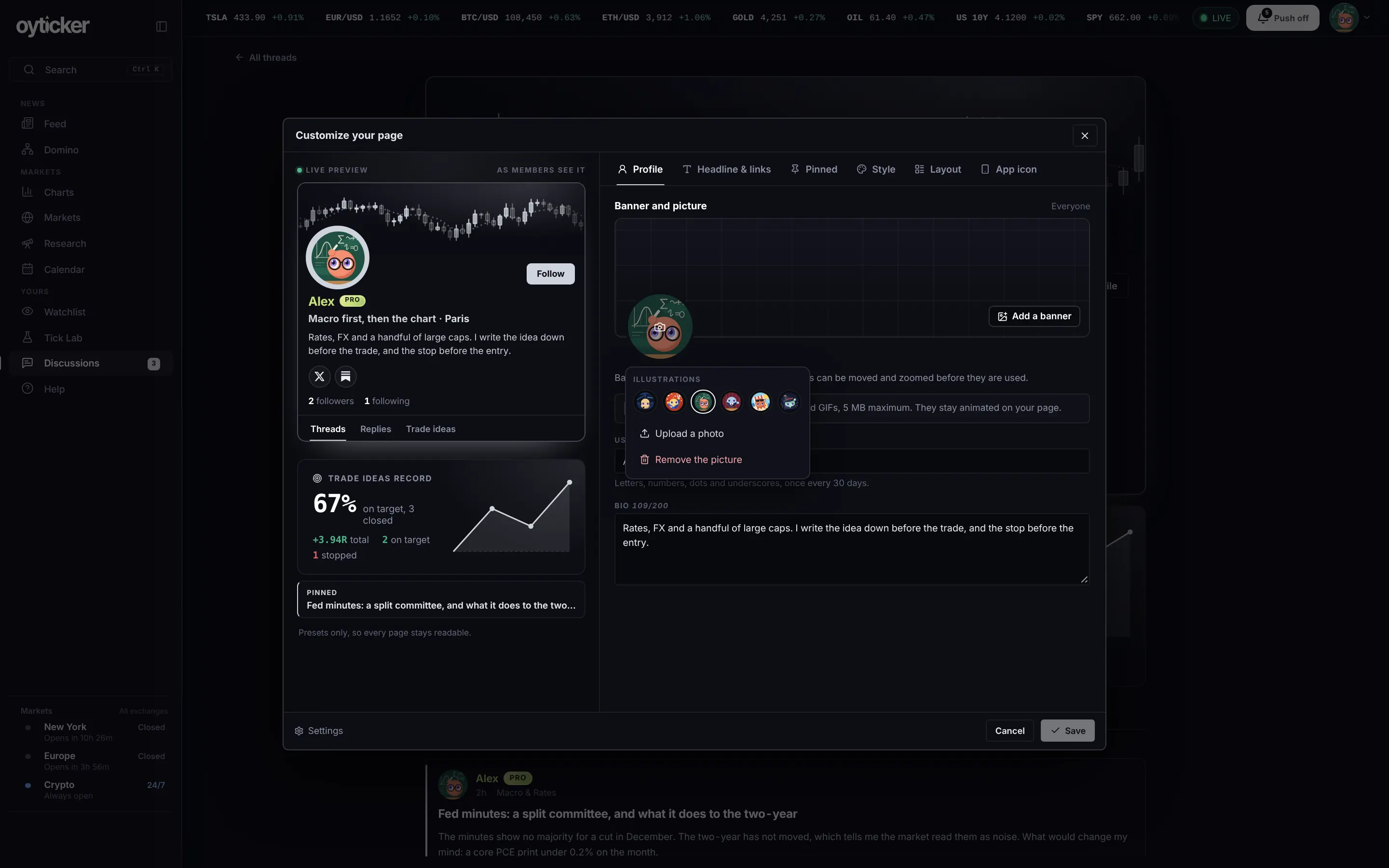
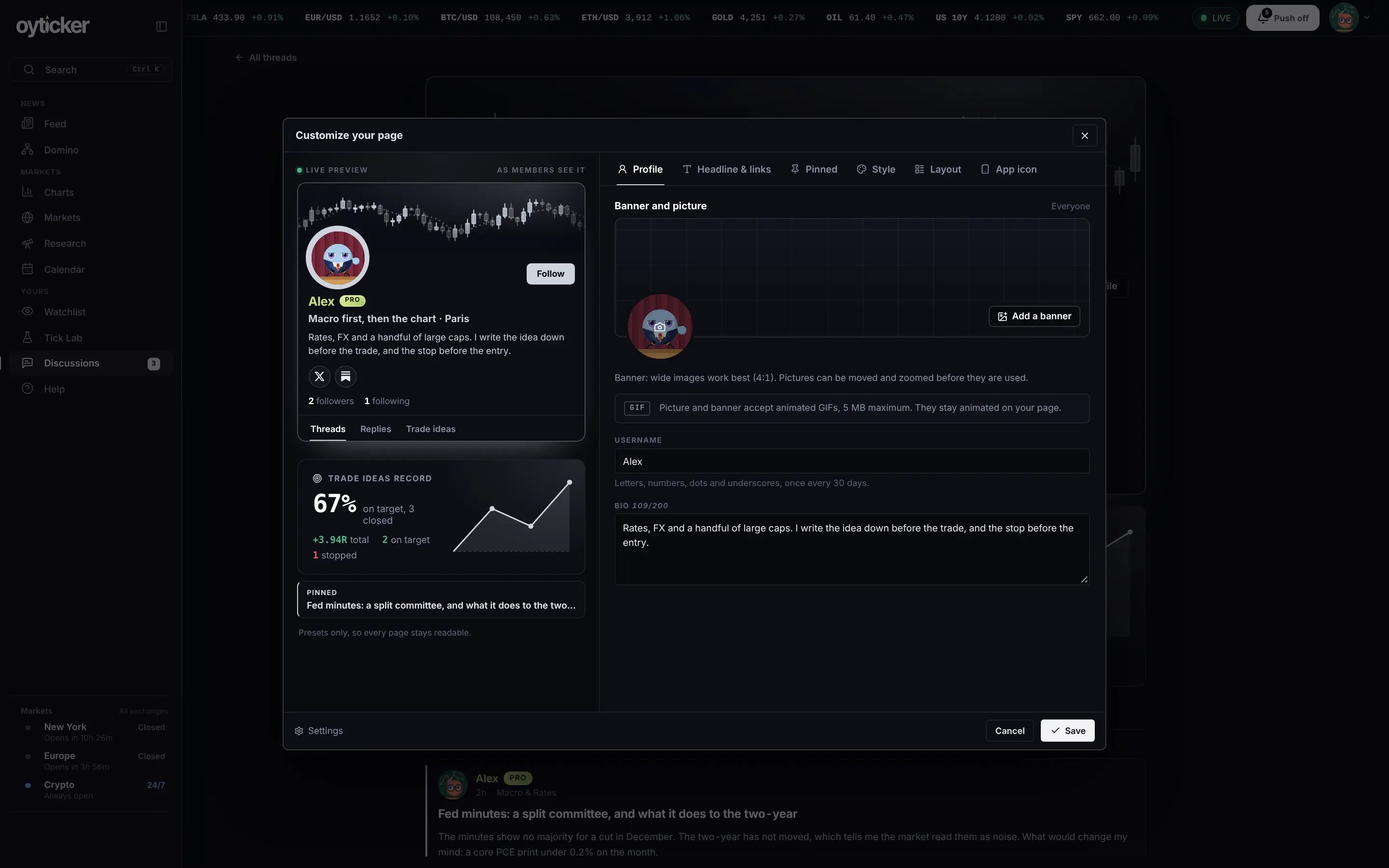
A click on it opens the choices.
Upload a photo, then move and zoom it into the circle. Remove the picture goes back to your initials.
Six illustrations: Trader, Floor trader, Quant, Central banker, Holder and Incognito.
The preview wears the new picture. Your page takes it when you save.
Style your page
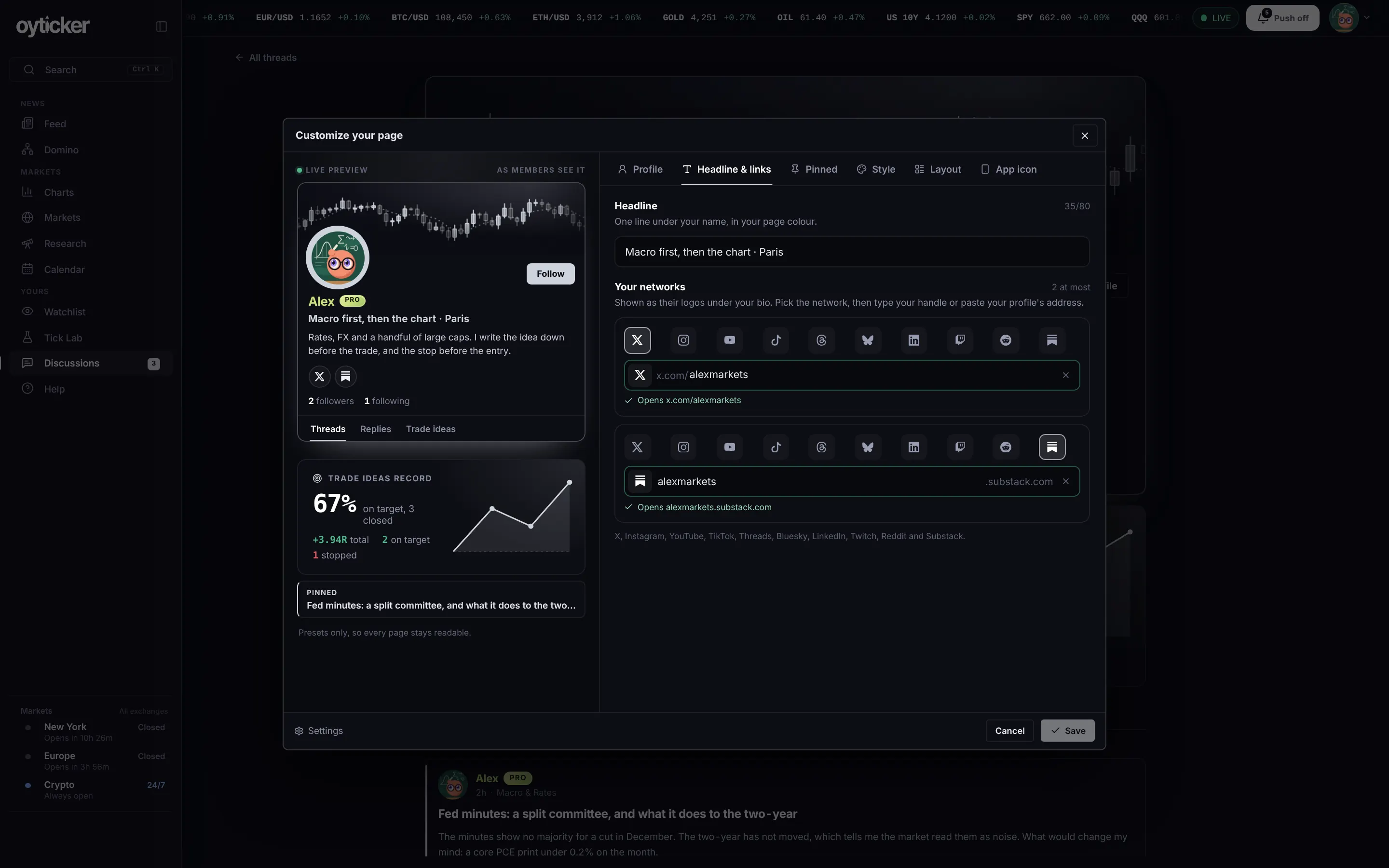
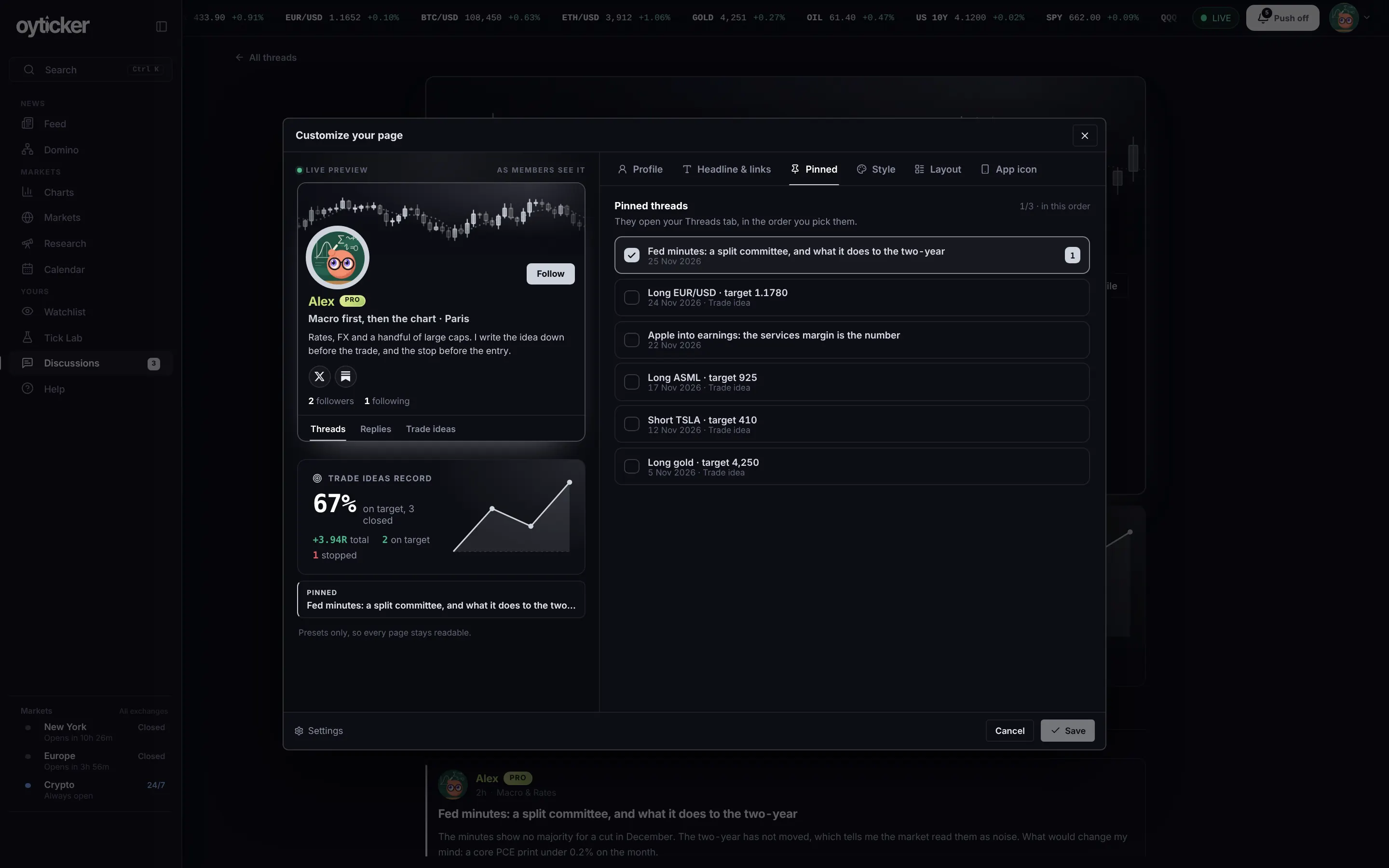
Profile, Headline & links, Pinned, Style, Layout and App icon.
One line under your name, 80 characters at most.
Two at most, shown as their logos under your bio. Pick the network, then type your handle or paste your profile's address.
Up to three of your threads, numbered in the order you pick them. They open your Threads tab.
Headline, networks and pinned threads appear as you set them.
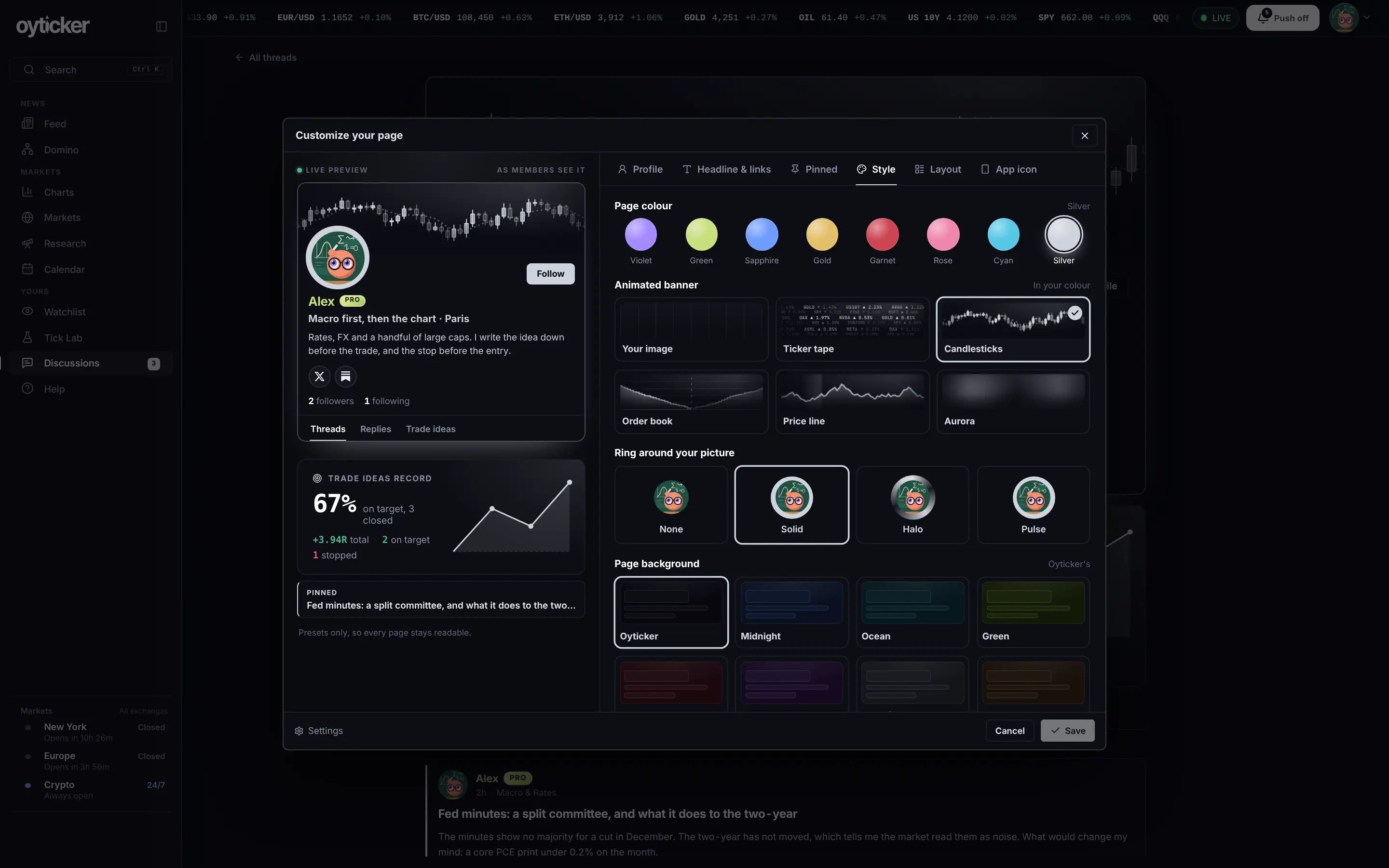
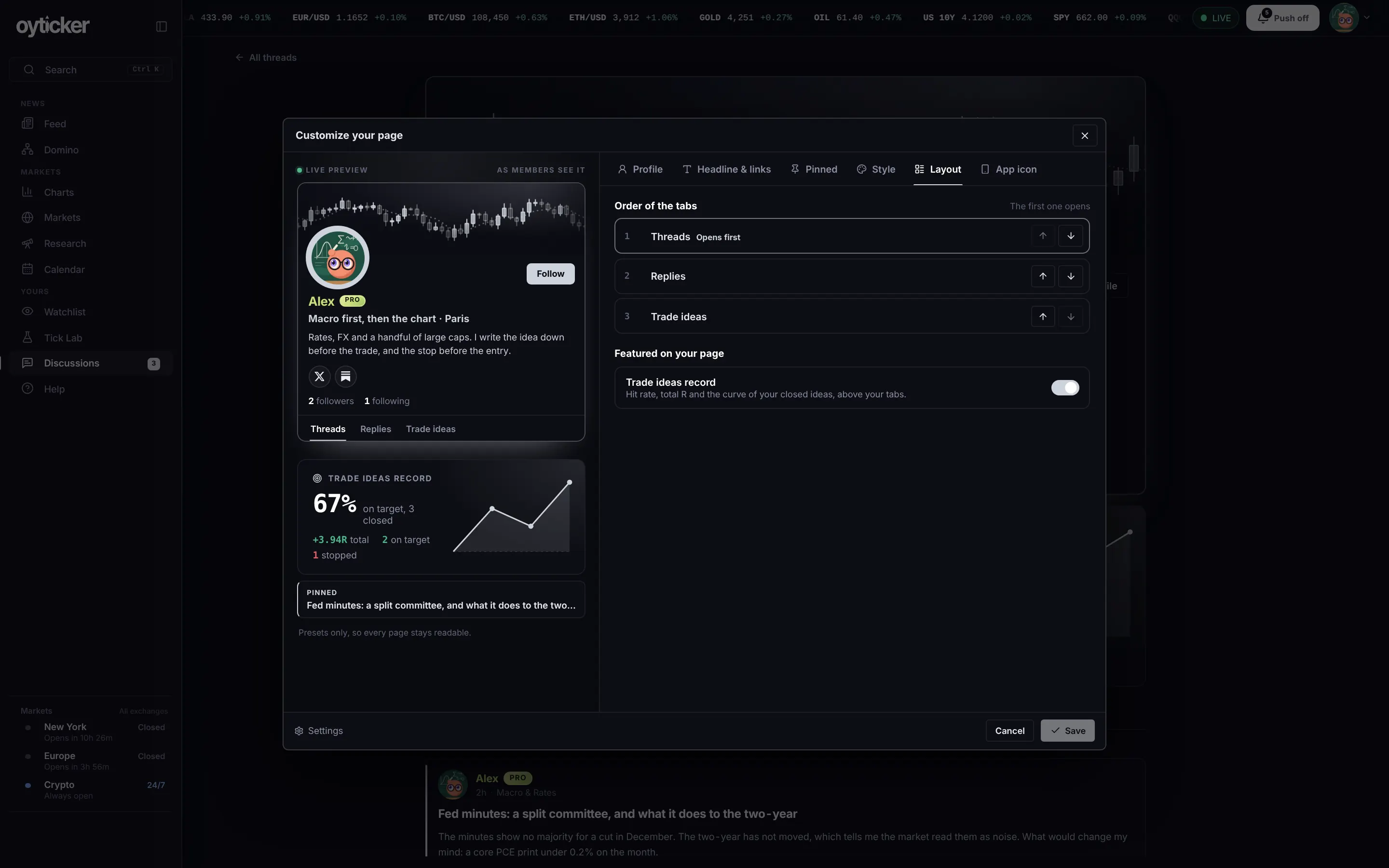
Eight colours. The animated banner and the ring take the one you choose.
Ticker tape, Candlesticks, Order book, Price line or Aurora, in place of your image.
Solid, Halo or Pulse around your picture, or none.
A tint for the whole page behind your profile, or Oyticker's own.
Threads, Replies and Trade ideas in the order you want. Your page opens on the first.
Puts the hit rate, total R and curve of your closed ideas above your tabs.
Styles are presets, so that every page stays readable.
App icon
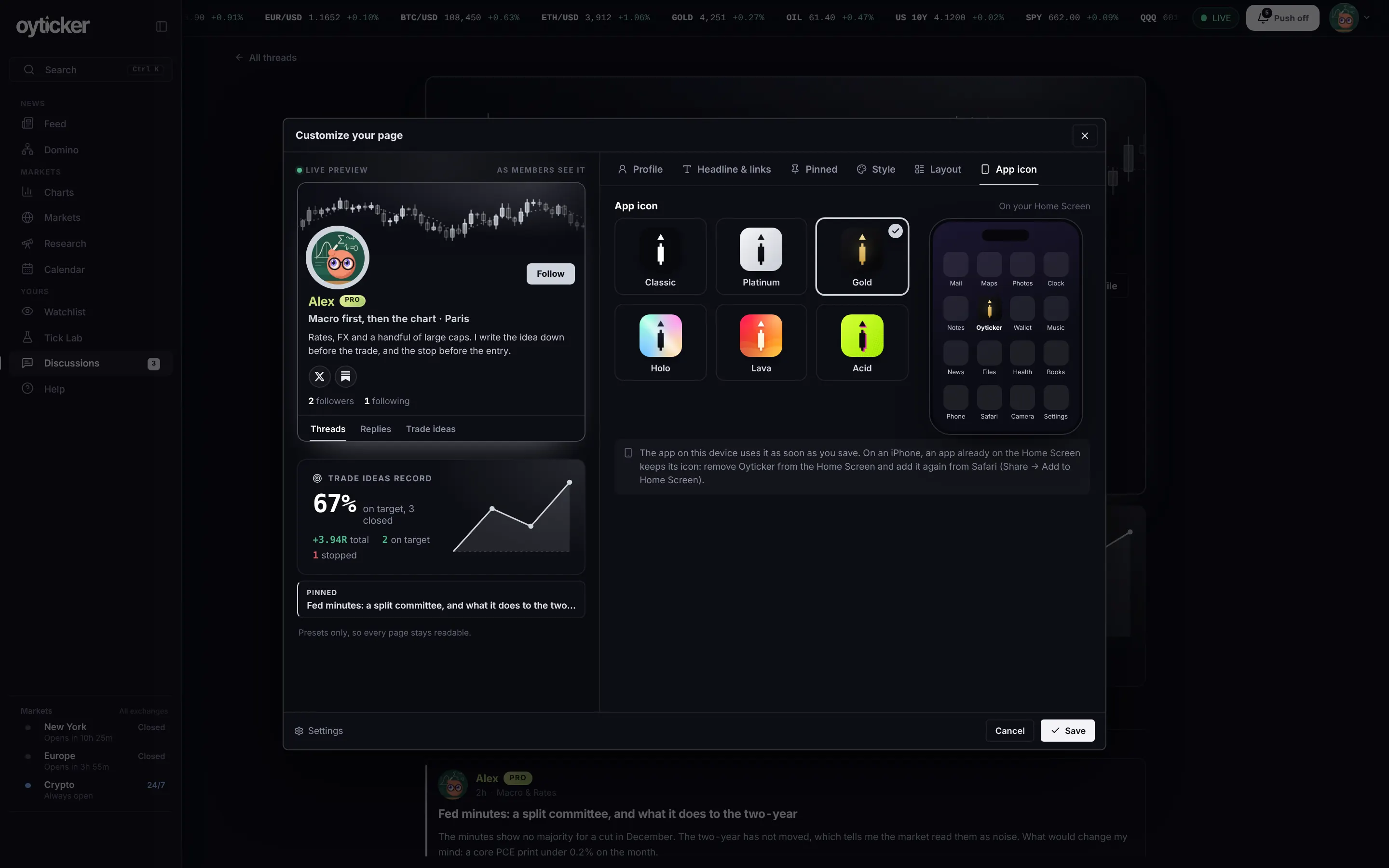
The last tab of the editor.
Classic, Platinum, Gold, Holo, Lava or Acid, for Oyticker on your Home Screen.
The icon chosen, among other apps.
On this device as soon as you save. An iPhone keeps the former icon until Oyticker is removed from the Home Screen and added again from Safari.
Oyticker is not on your Home Screen yet? Install the app.
Settings
In the account menu, under Profile.
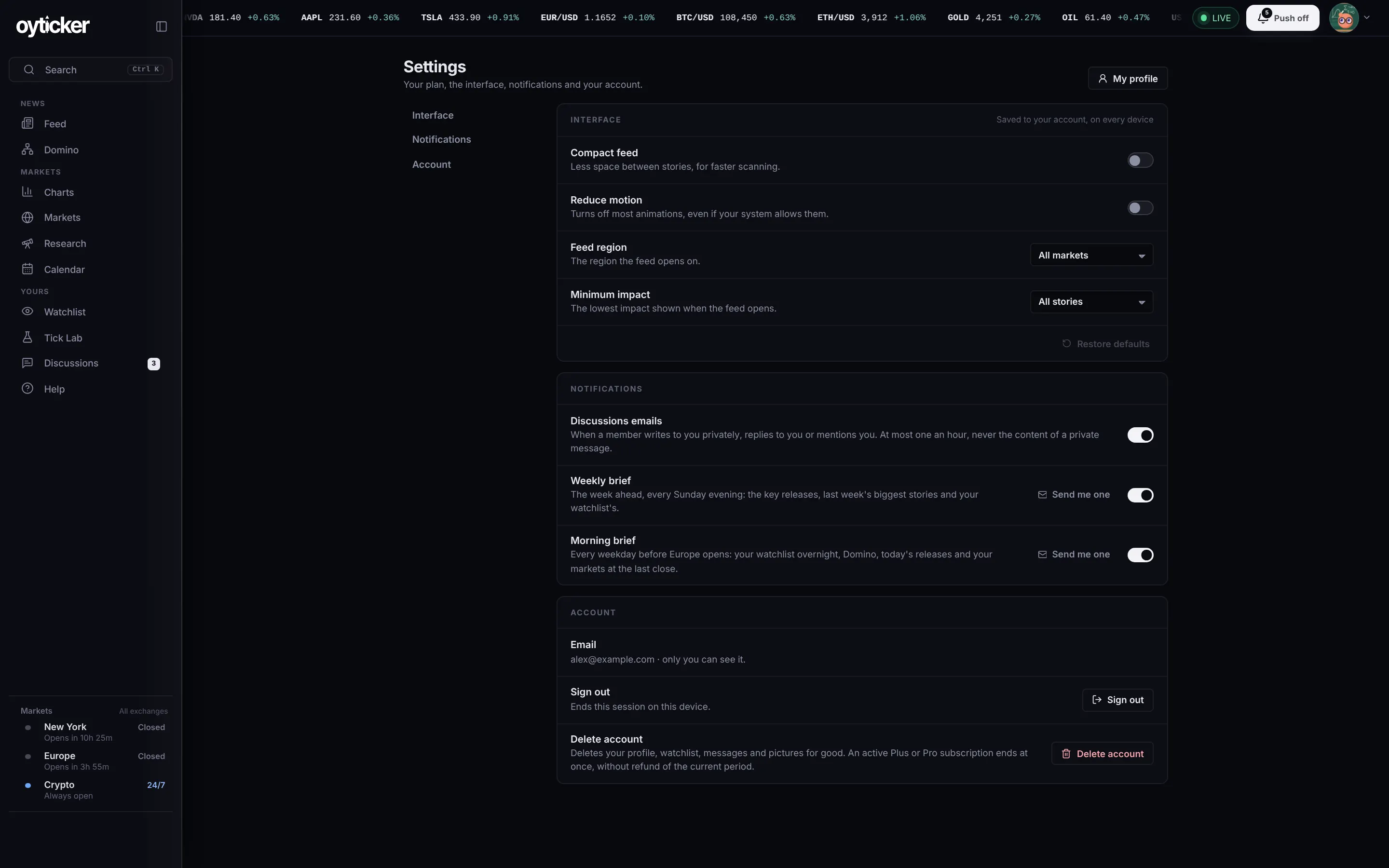
Interface, Notifications and Account. Each change is saved as you make it.
Compact feed tightens the list of stories. Reduce motion turns off most animations.
On all markets, Europe or the United States, and from an impact of 40, 60 or 80.
Preferences are kept in your account. Restore defaults undoes them all.
A private message, a reply or a mention. One e-mail an hour at most, never the content of a private message.
Every Sunday evening: the week ahead, last week's biggest stories and your watchlist's.
Every weekday before Europe opens: your watchlist overnight, Domino, the day's releases and your markets at the last close.
Sends the brief now to the e-mail of your account. The switch stops or resumes it.
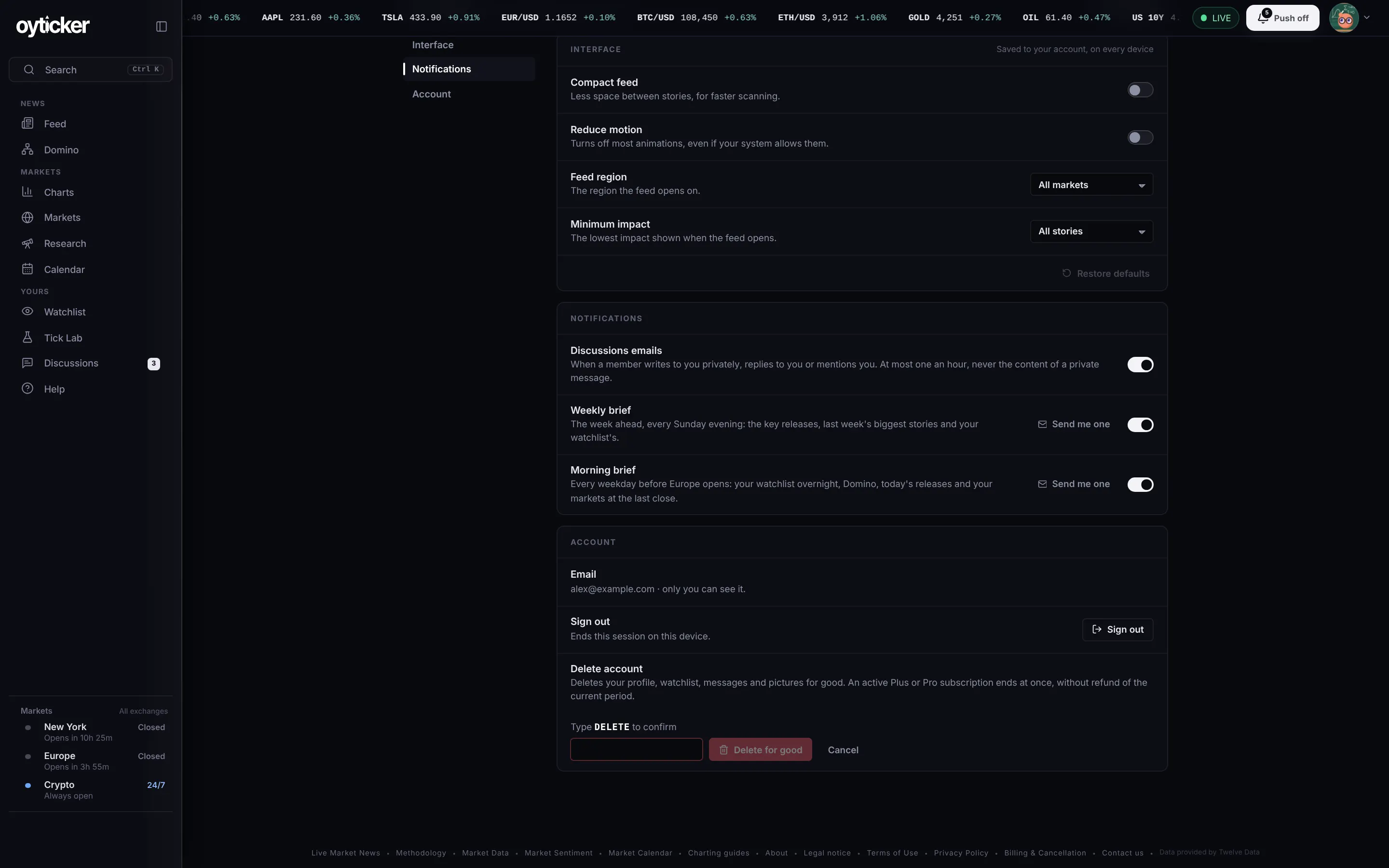
The e-mail you sign in with, seen by you alone, and Sign out for this device.
Removes your profile, watchlist, messages and pictures for good.
Delete for good works once the word is typed. Cancel closes the field.
Notifications on a device are not here: they are set from the bell. See push notifications.
The screens show simulated prices and stories.